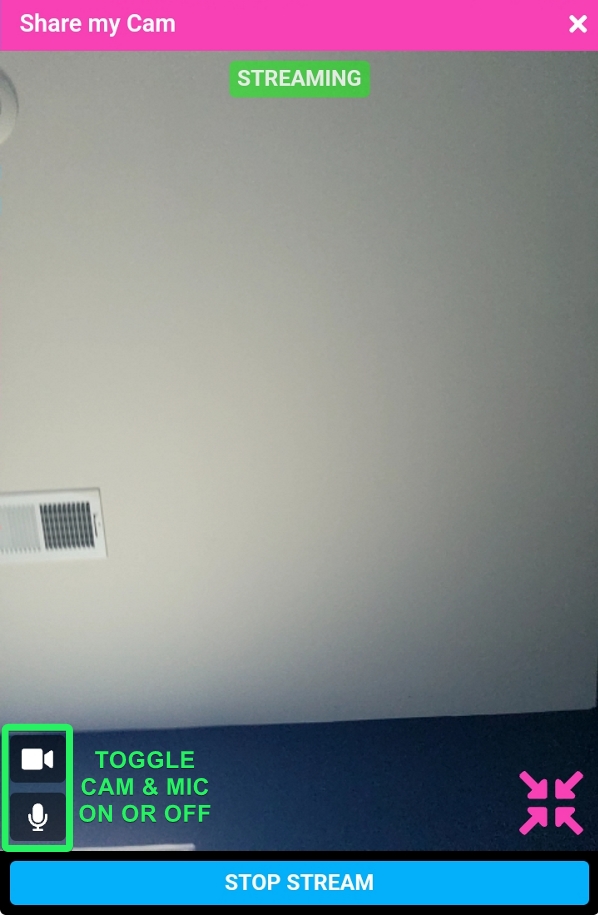
There are two ways you can share your cam with a model:
- via Share Cam in the model's public chat, for a per-minute fee (video only, no audio). The model will be able to see you, but they will not be able to hear you. Golden Ticket shows also allow Share Cam if activated.
- via Cam2Cam in private chat with video and full audio, or audio-only. If a model has Cam2Cam for privates enabled, it will be listed on the private chat prompt before starting, and is included in the cost of the private session.
It is important to note that you will be prompted to allow access to your device's camera and microphone the first time you engage in Share Cam or Cam2Cam. When prompted, please select "Allow" for both your camera and microphone.
Can other users see my cam?
No, only the model will be able to view your cam when you share it with them.
I am experiencing technical difficulties sharing my cam - what can I do to fix it?
If you are experiencing technical difficulties with ShareCam or Cam2Cam, see this user troubleshooting guide.
Instructions to initiate a Share Cam in a public chat (video only, no audio):
via Mobile
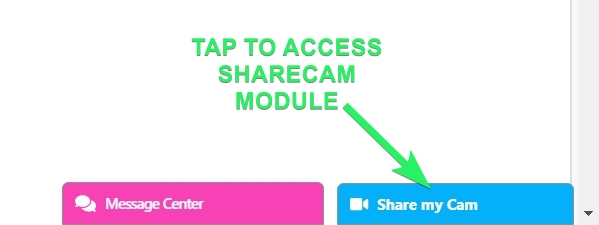
- From the model's public broadcast room, locate and tap the Share Cam button underneath the model's stream window
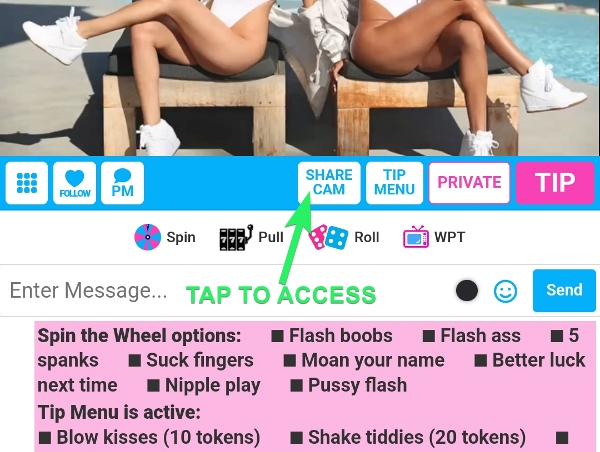
- Allow access to your device's camera and microphone if not already completed
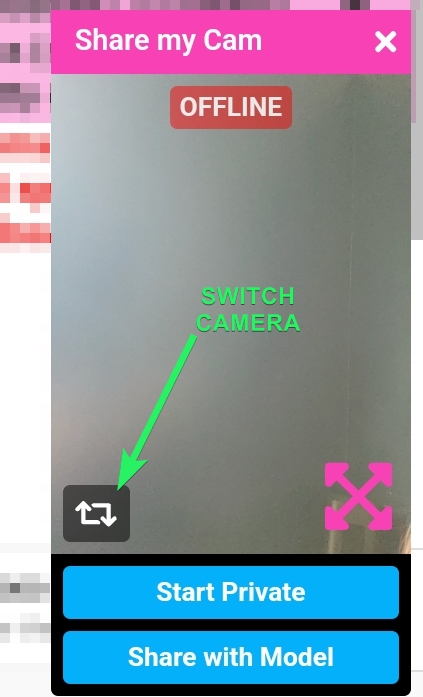
- A small video window will appear with options to Share With Model or Start Private (only if the model has private sessions enabled) - select Share With Model to open the Start ShareCam confirmation box. Tapping this will then prompt the model to accept your request for Share Cam.
- Note: if a model has private cam2cam enabled but not public sharecam, you can open the sharecam module but the only option will be Start Private, and you'll enter a private session where you can begin a cam2cam.
- Once your Share Cam request has been accepted, your video feed will begin broadcasting and tokens will be deducted every 10 seconds based on the model's per-minute rate.
- Your Share Cam will continue until you or the model tap Stop Stream, or, you run out of tokens.
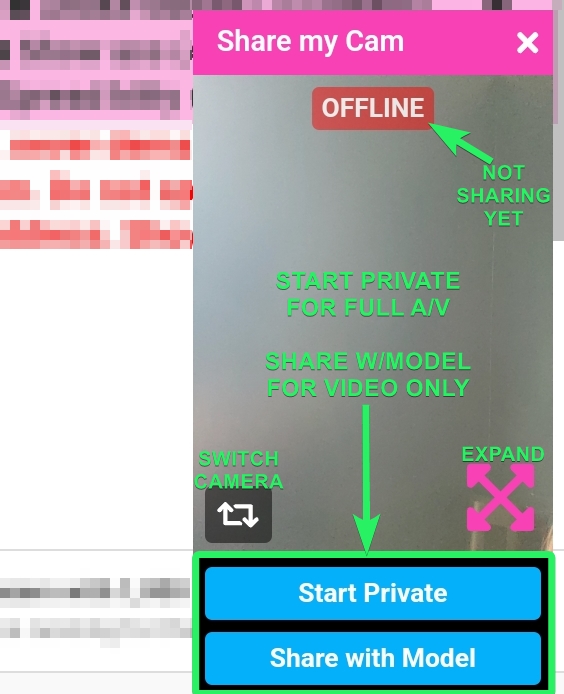
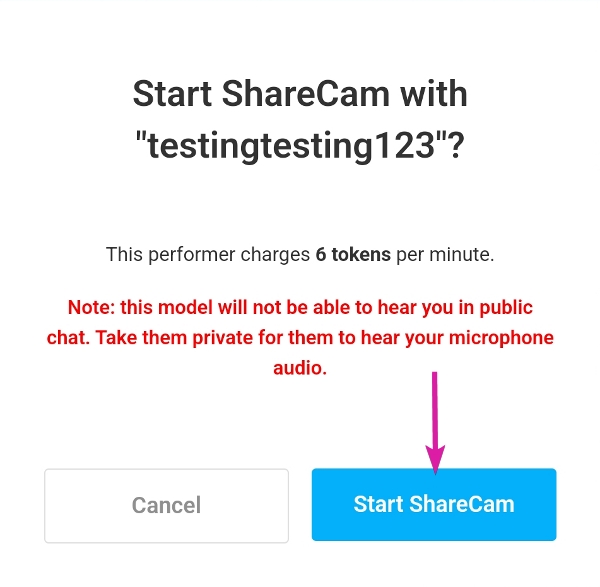
via Desktop, the process is the same as described above, but with slightly different options / locations.
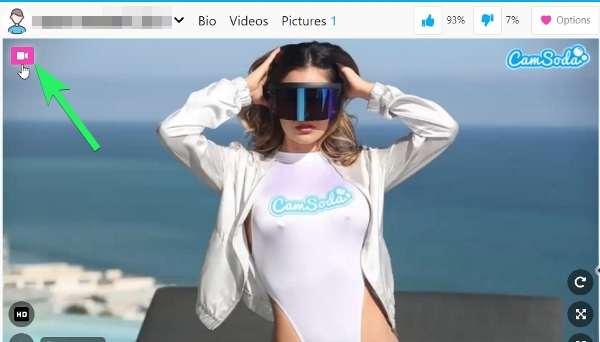
- From the model's public broadcast room, locate the pink camera icon button in the top left of the model's stream window, or tap the blue bar in the bottom right corner that says "Share My Cam"
How do I know my cam is being shared with the model?
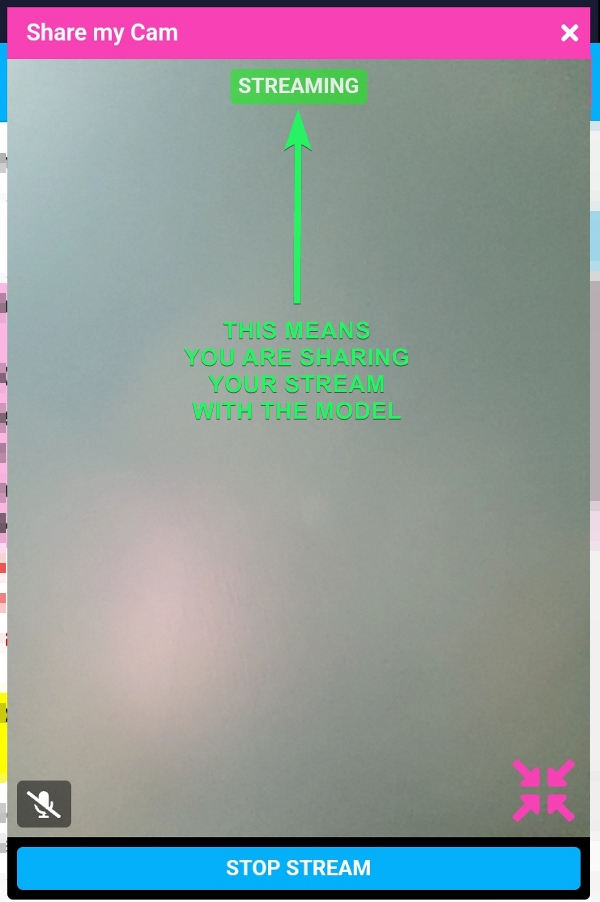
Once you tap to share your cam with a model, the broadcast status will change from OFFLINE highlighted in red, to CONNECTING highlighted in blue, to STREAMING highlighted in green directly on your cam window. If your cam gets "stuck" in offline or connecting, please refresh the page and try again.
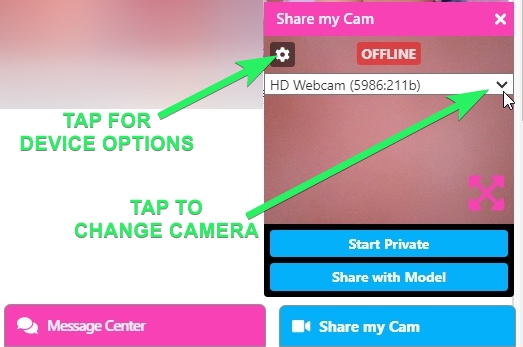
How can I switch my camera?
Via mobile:
- Prior to sharing your stream with the model, tap the flip icon to switch between front and back facing cameras
Via desktop:
- Prior to sharing your stream with the model, tap the gear icon and the dropdown menu to select a different camera
Instructions to start a Cam2Cam in private chat (full video and audio, video, or audio-call only):
via Mobile
- If you are already engaged in a private session, simply tap the Share Cam button, then tap the Share with Model button on your player to begin broadcasting your stream to the model with full audio and video (or set to your preferences). Please allow access to your device's camera and microphone if not already completed.
- Or, from the model's public broadcast room, locate and tap the Share Cam button underneath the model's stream window
- A small video window will appear with options to Share With Model or Start Private - select Start Private to prompt the model to accept your private request.
- Once the private starts, you will then need to click Start Streaming on your cam window, as your camera will not be automatically connected and appear as "offline" in red on your video stream.
- To close your Cam2Cam, you can press Stop Stream, but your private chat will continue until you tap End Private or you run out of tokens.
via Desktop, the process is the same, but with slightly different options / locations as described above.
- From the model's public broadcast room, locate the pink camera icon button in the top left of the model's stream window, or tap the blue bar in the bottom right corner that says Share My Cam and follow the previously listed instructions.