
Updating Notification Settings on CamSoda
1. Following a model from a Broadcast Room:
- Mobile: Tap the Follow button displaying a heart icon, or the Notify When Live button.
- Desktop: Click the heart icon above the stream window, or the "Notify me when [Model Username] Comes Online" below the chat window.
- Follow the prompt to choose between email and/or push notifications. Save your selections.
- See this article for more information about following a model.
2. Preferences Via Desktop:
- Click the dropdown menu at the top right.
- Go to Settings > Notifications.
- Choose your notification preferences (Email or Push notifications).
- Manage notifications for specific models or unfollow using the 'Manage Followed Models' option.
3. Preferences Via Mobile:
- Tap the hamburger menu at the top left.
- Select My Profile > Notifications.
- Choose your notification preferences (Email or Push notifications).
- Manage notifications for specific models or unfollow using the 'Manage Followed Models' option.
Email Notifications:
- Receive emails for broadcasts by followed models, feature show alerts, lineup summaries, and account notifications.
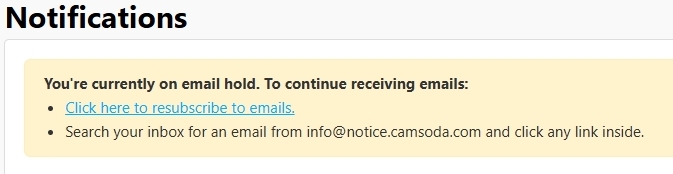
- Note: If you do not periodically click on your email notifications, this inactivity may lead to non-delivery. You can resubscribe your email by following the listed instructions and tapping the provided link via My Profile > Notifications.
Push Notifications:
- Get notified for broadcasts by followed models and feature show alerts.
For Android Chrome:
- Enable push notifications by setting permissions to 'Allow'.
- If encountering errors: - For browser setting errors, reset permissions (tap tune icon in your address bar > Permissions > Reset) and refresh the browser. - If you have the CamSoda progressive web app installed, manage notifications in the app or uninstall the app to use Chrome settings.
For iPhone Safari & Chrome:
- Install the CamSoda progressive web app (shortcut) to enable push notifications. Ensure permissions are set to 'allowed'.