
For quick access to CamSoda, you have the option to install our progressive web app to your device's home screen. You can have the full CamSoda experience without needing to use a classic browser to enjoy, and you'll be able to receive push notifications. To add, follow the relevant instructions below:
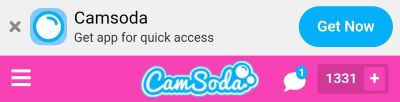
'Get Now' bar
You may see across the top of your browser window an option to install CamSoda's app when you visit the site:
- Tap the Get Now button, and follow the prompt to complete the install.
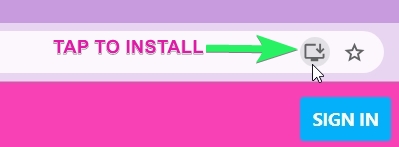
For Chrome desktop users
- locate the Install icon in your navigation bar and tap to add the CamSoda app to your device. The install icon looks like a screen with a down arrow.
MOBILE DEVICES
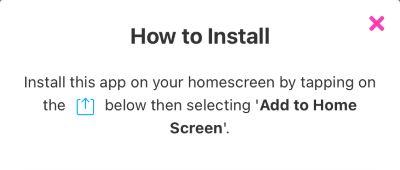
iOS (iPhone) devices:
- Tap on the upward arrow share icon and select 'Add to Home Screen'.
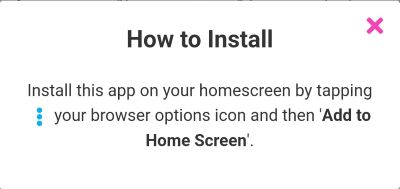
ANDROID devices:
Chrome
- Tap your browser options icon then 'Add to Home Screen'.
Samsung Internet Browser
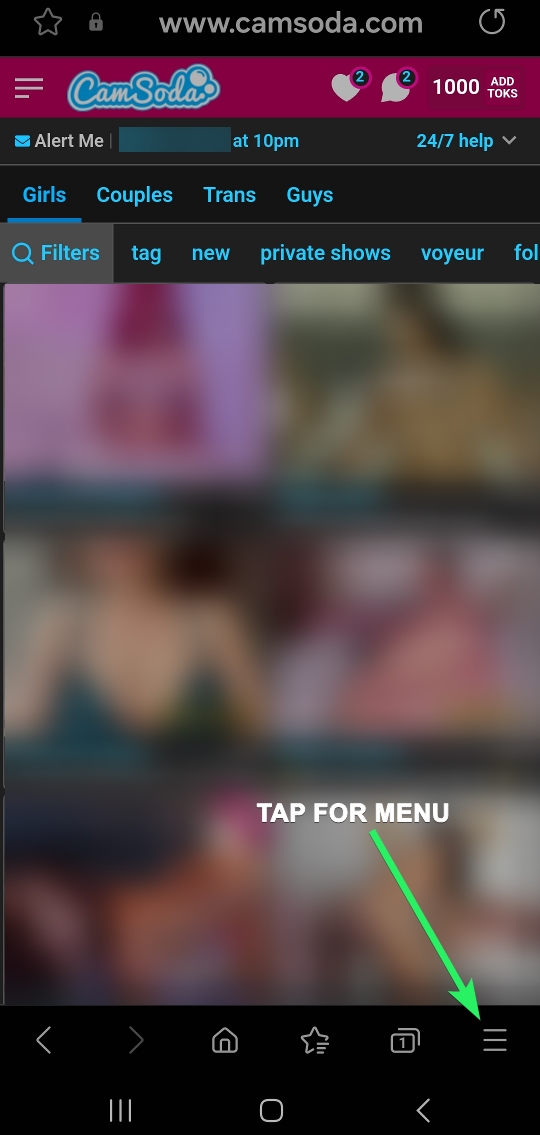
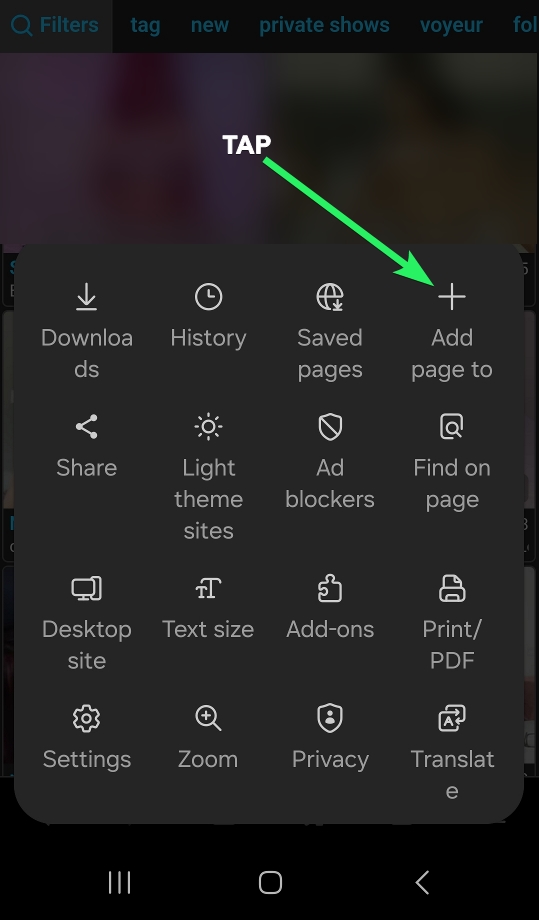
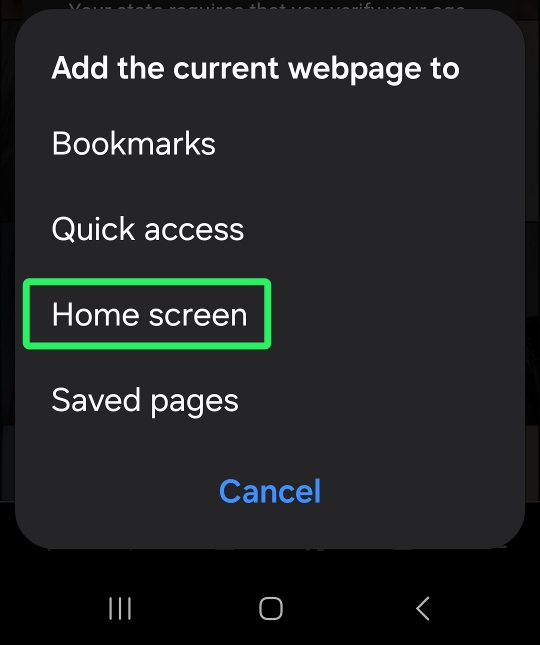
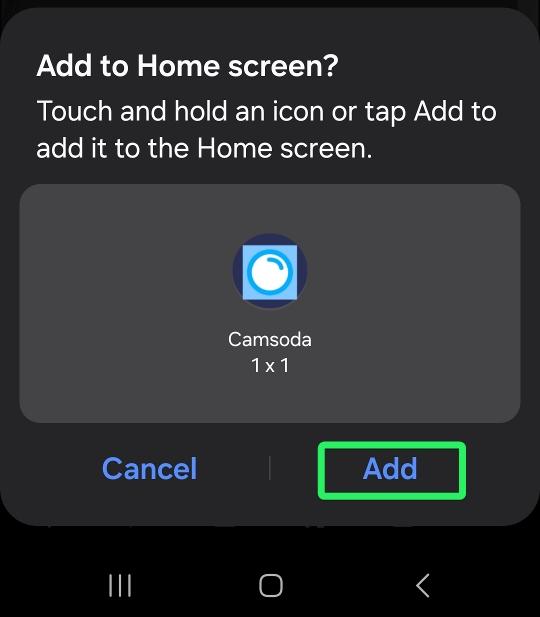
If you are using Samsung browser, you can take the following steps to install:
- Tap the hamburger menu (3 horizontal lines) and select + Add page to
- Select Home Screen
- Touch and hold the icon or tap Add to add it to the home screen
For the CamSoda "lite" experience which is formatted for mobile devices, you can visit www.camsoda.app to add it. Please note that this version will not have all of CamSoda's features and does not enable to you to receive push notifications.