How do I manage private messaging on CamSoda?
- Updating Message Settings: Go to Settings & Privacy > Private Messages. Choose from:
- Disable PM: No private messages.
- Anyone: Allow messages from anyone with a Premium subscription.
- Fan Club Only: allow messages from users who subscribe to your Fan Club who may not have a Premium subscription
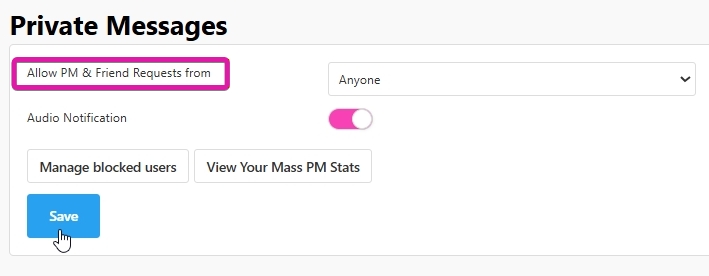
- Additional Features: Toggle message audio notifications, manage blocked users, view mass PM stats, and access the Message Center for message history and friends list.
- Accessing Message Center:
- Desktop: Click the pink Message Center bar on the lower right corner.
- Mobile: Tap the chat bubble icon near your avatar.
- Sending PMs: To PM someone not in contact yet, tap their username in your chat room and select Send Message. Note: if you PM a user first, they will have a short period of time to reply without needing Premium or a Fan Club subscription.
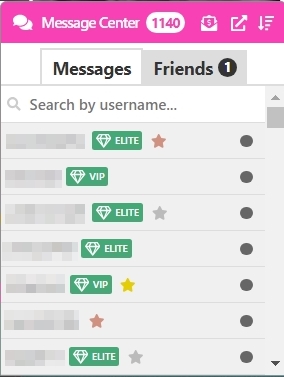
- Message Center Notifications: A number on the Message Center indicates unread messages or friend requests.
- Mass Media PMs: Use the envelope icon with a dollar sign to send mass media PMs weekly.
- Member Notes: The paper icon with a folded corner is for personal notes about members, visible only to you.
- Sorting Messages: Sort chat history by timestamp, unread status, or alphabetically in the Messages tab.
- Pop Out Window: On desktop, access your full Message Center and Friends List via the icon resembling a box with an upward arrow.
- Blocking and Reporting: Block or report users directly in the PM box to stop receiving their messages.
What do the icons next to usernames mean?
- Member Types: Icons indicate the type of member (VIP, Elite VIP, admin badges, and stars).
- Green Tags: VIP and Elite VIP based on membership status.
- Stars: Gold, silver, or bronze stars signify recent spending or token purchases.
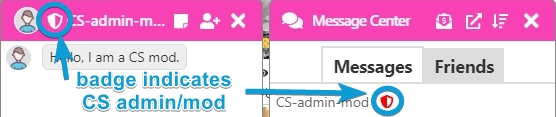
- Admin Badge: small shield badge next to username for CamSoda admins.