How to Add Friends:
- Tap a user's username in chat or open a PM.
- Select "Send Message" to open a PM box.
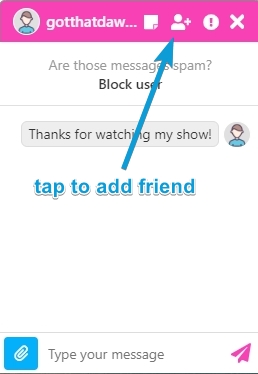
- Click the "Add Friend" icon (person with a + symbol).
Benefits of Adding Friends:
- Quickly access message history with them.
Receiving and Accepting Friend Requests:
- Notifications appear in the Message Center under the Friends tab.
- Accept or decline with the Check or X symbol.
Search Your Friends List:
- Use the search field at the top of the Message Center to search for specific friends.
Pending and Online Friends:
- Pending requests are gray and labeled "pending."
- Online friends are indicated by a green dot.
Removing Friends:
- Go to Message Center, select Friends tab.
- Find the username, click the gray trash can icon.
- Confirm removal. (Note: This does not delete chat history.)
Icons in Friends List/Message Center:
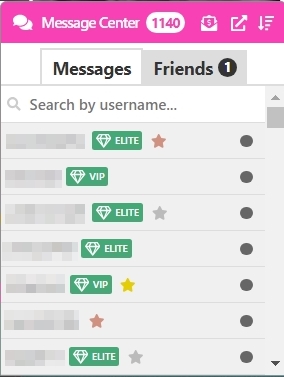
- VIP / Elite VIP Members: Green tag icons.
- Recent high spenders: Gold, silver, or bronze stars.
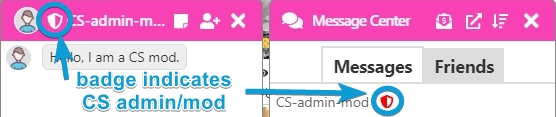
- CamSoda admins: Badge next to username in chat & private messages. Only CamSoda officials will have the badge listed next to their username.